Prerequisites
- Confirm that your EC2 instance has an IAM role assigned to it.
- Make sure the instance profile is correctly set up through the AWS Console under EC2 › Instance Settings › Attach/Replace IAM Role.
Updating the Existing IAM Role
Since your EC2 instance already has an IAM role in place, you’ll need to update it with the appropriate S3 permissions:- Open the role in IAM In the AWS Console, navigate to IAM › Roles and locate the role attached to your EC2 instance.
- Attach the S3 policy Click on the role and go to the
Permissionstab. SelectAdd permissions › Attach policies, search for and choose theAmazonS3ReadOnlyAccesspolicy, then clickAttach policies.
- Create an inline policy Within the same role’s Permissions tab, click Add permissions › Create inline policy. Switch to the JSON editor and enter the policy below (replacing
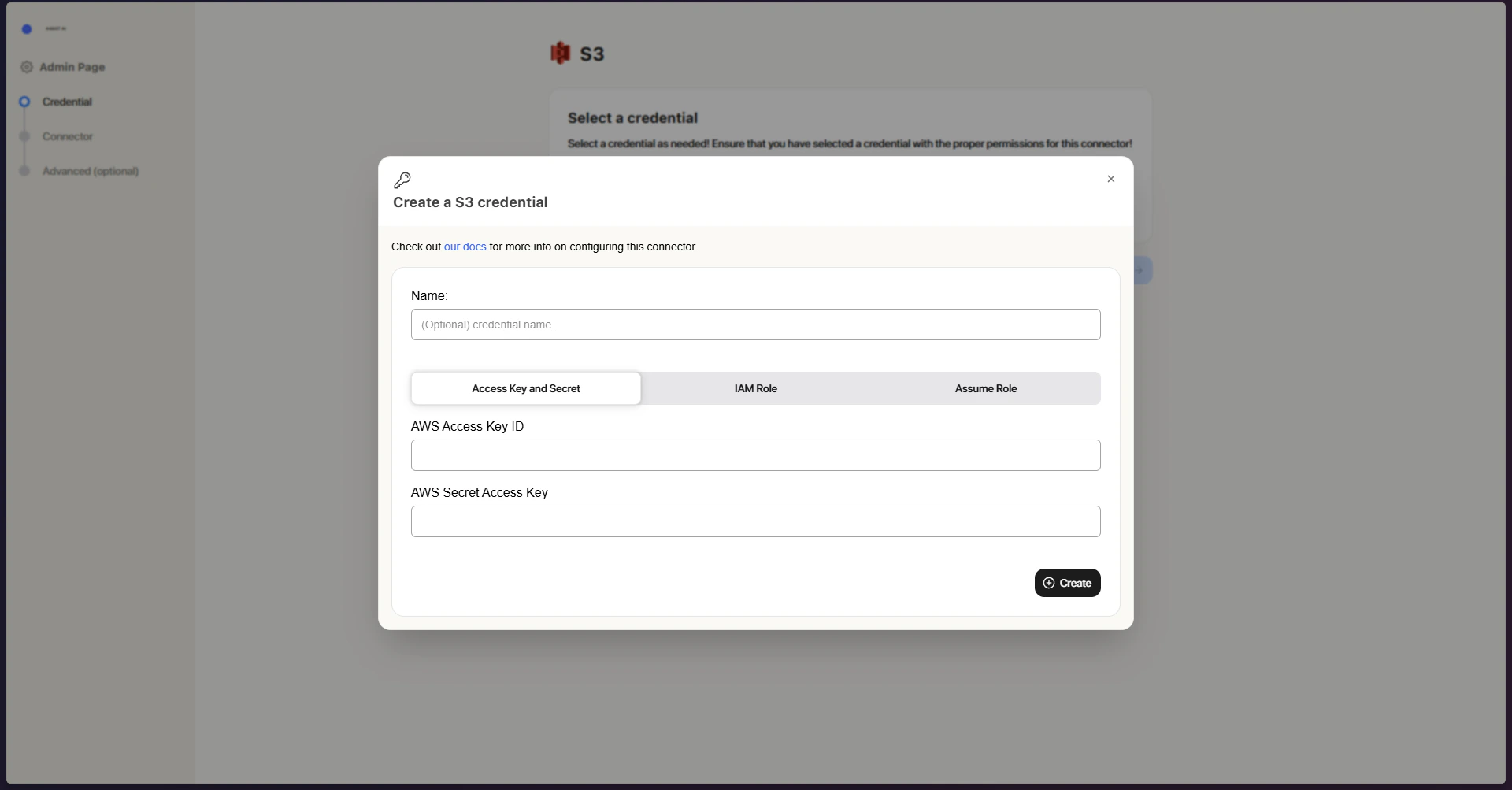
your-source-bucket-namewith your actual bucket name):Give the policy a name (e.g.,ASSISTAIS3Access) and click Create policy. Once configured, the connector will automatically detect and utilize the EC2 instance’s IAM role to access your S3 buckets.Credential Entry in ASSIST AI
- Open the Assume Role tab Click on the Assume Role tab within the connector configuration.
- No credentials required There is nothing to enter here; the connector will automatically pick up and use the IAM role attached to your EC2 instance.