
Guide
This guide explains how to configure ASSIST AI to work with models hosted through OpenRouter- Set Up OpenRouter and Deploy Your Models Sign in to your OpenRouter account and generate a new API key.
- Go to the AI Model Configuration Page Open the Admin Panel via your profile icon, then navigate to Admin Panel → LLM.
- Configure OpenRouter
- Select OpenRouter from the list of available providers.
- Assign a Display Name to your provider, enter your OpenRouter API key, then click the Fetch Available Models button to load the models currently accessible through OpenRouter.
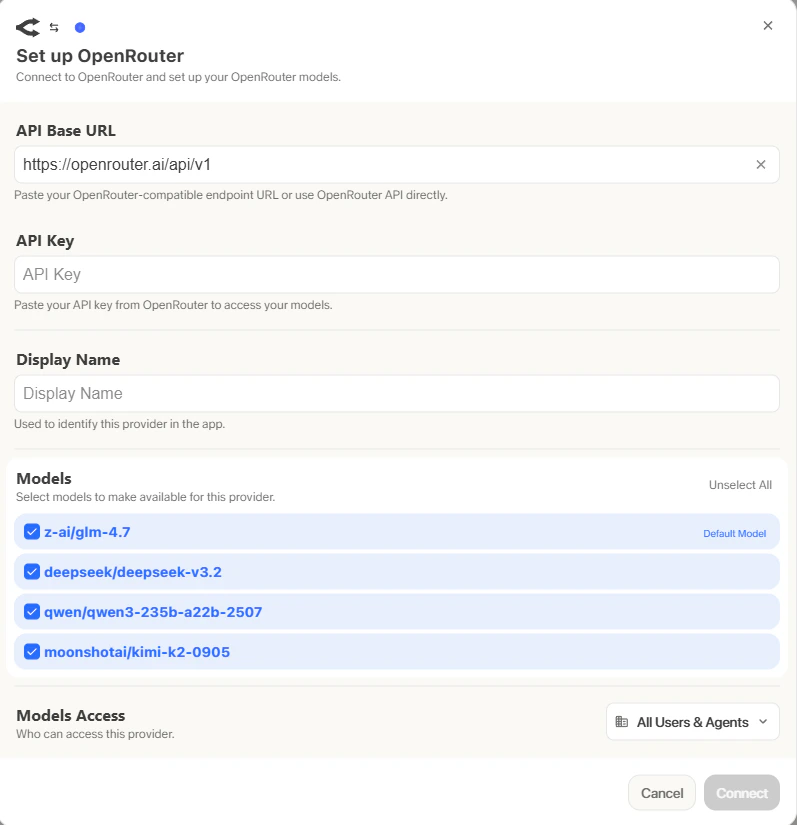
- Set Default and Fast Models The Default Model is automatically applied to new custom Agents and Chat sessions. Designating a Fast Model is optional -it handles background operations such as message type evaluation, query expansion, and chat session naming. If you choose a Fast Model, opt for something quick and budget-friendly, like GPT-4.1-mini or Claude 3.7 Sonnet.
- Select Visible Models Under Advanced Options, you’ll find the full list of models available from this provider. You can decide which of these models are accessible to your users in ASSIST AI. This is particularly useful when a provider offers several models or multiple versions of the same model.
- Define Provider Access Finally, determine whether this provider should be available to all users in ASSIST AI or limited to a select group. If set to private, only Admins and the User Groups you specifically assign will have access to the provider’s models.