How it works
The Dropbox connector imports all documents from your Dropbox account into ASSIST AI.
It recursively retrieves all files starting from the root directory of your account - at this time, it is not possible to limit imports to specific folders only. The connector performs a single pull upon initialization.
To bring in additional documents later, you’ll need to generate a new access token (see Step 4 below), enter it into the connector, and re-initialize it.
Setting Up
Authorization
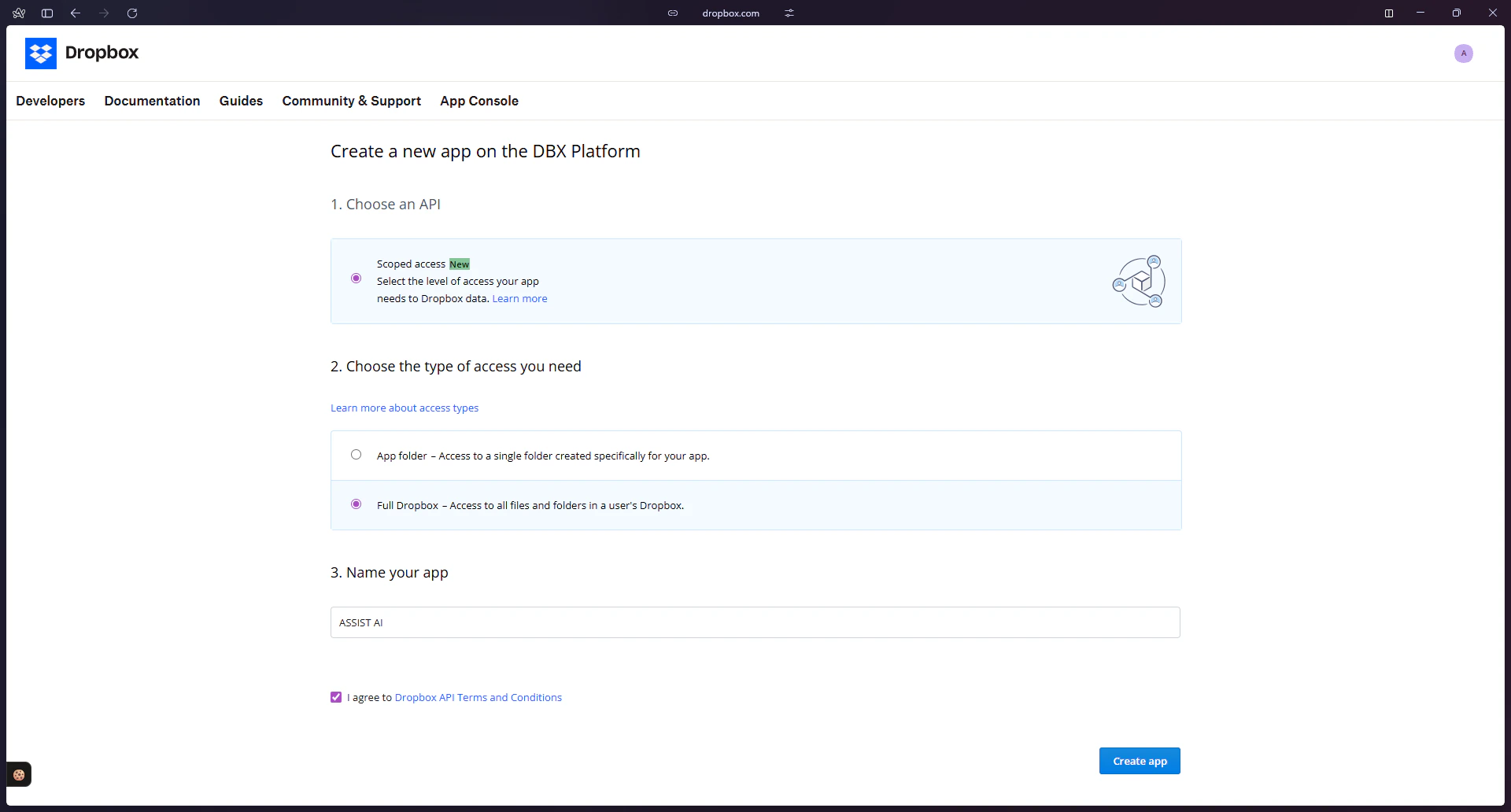
- Create a Dropbox App — Go to https://www.dropbox.com/developers/apps and click
Create app in the top-right corner. Select Scoped access and Full Dropbox as the access type. Give your app a name such as “ASSIST AI Connector” and click Create app.
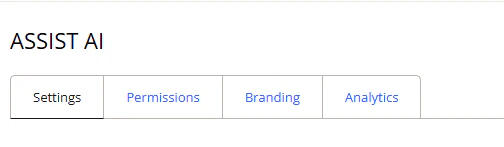
- Open Permissions Click on the
Permissions tab.
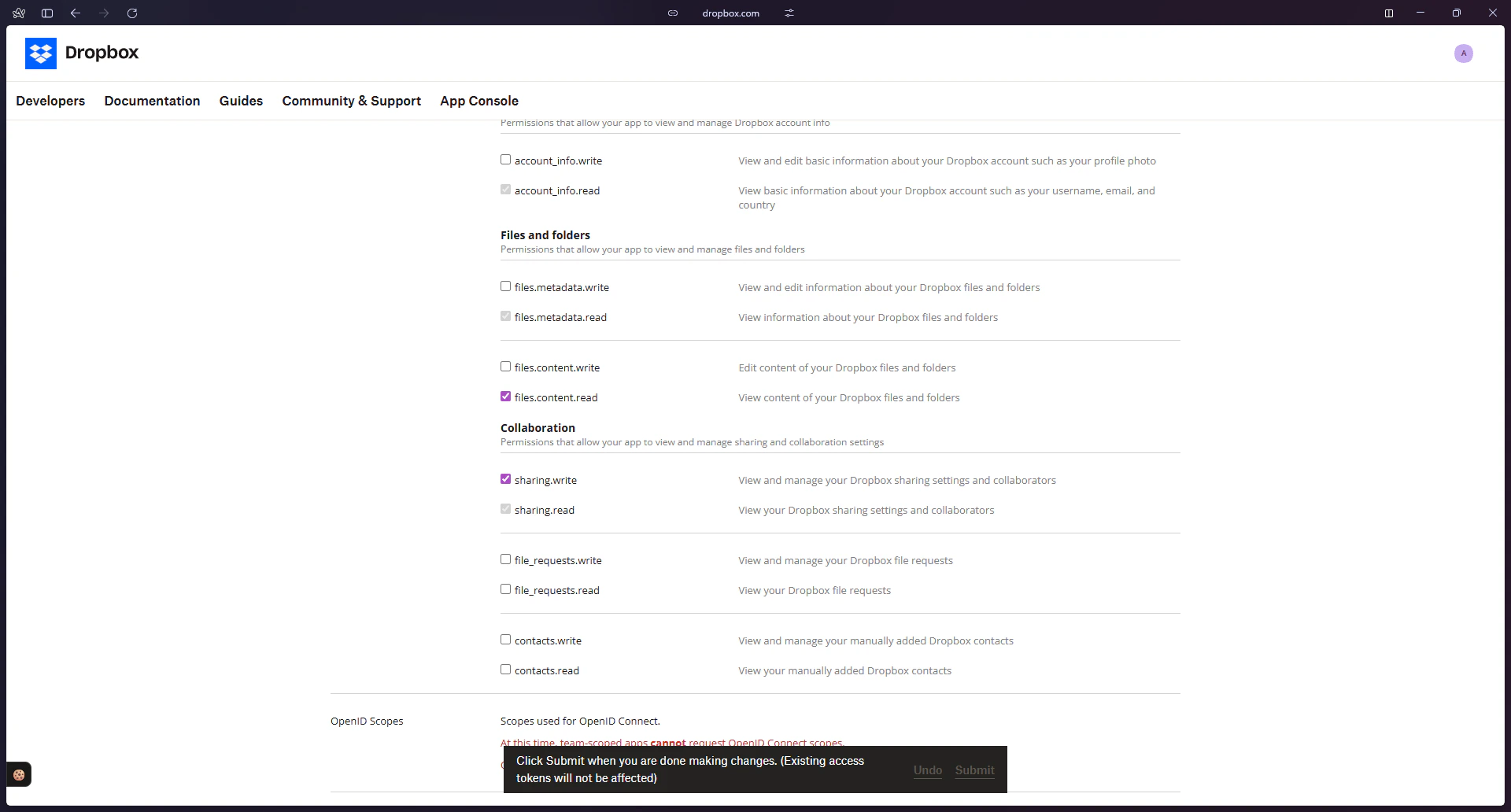
- Grant Required Scopes Enable the
files.content.read and sharing.write permissions so that files can be read and document links can be generated. Click Submit to save your changes.
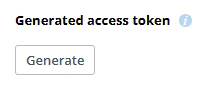
- Generate an Access Token Go to the
Settings tab and scroll down to the OAuth 2section. Click Generate to create an access token.
Permissions must be granted before generating an access token. Updating permissions after the fact will not apply to existing tokens, and ASSIST AI will be unable to index your Dropbox content.
- Copy the Access Token Copy the generated token and store it for the next step. Refresh the page if you need to regenerate the token.
Indexing
- Open the Dropbox Connector In the ASSIST AI interface, navigate to the Admin Panel and select the Dropbox Connector.
- Enter the Access Token Paste the access token you copied in the previous step.
- Start Indexing Click “Connect” to begin importing your Dropbox files into ASSIST AI.