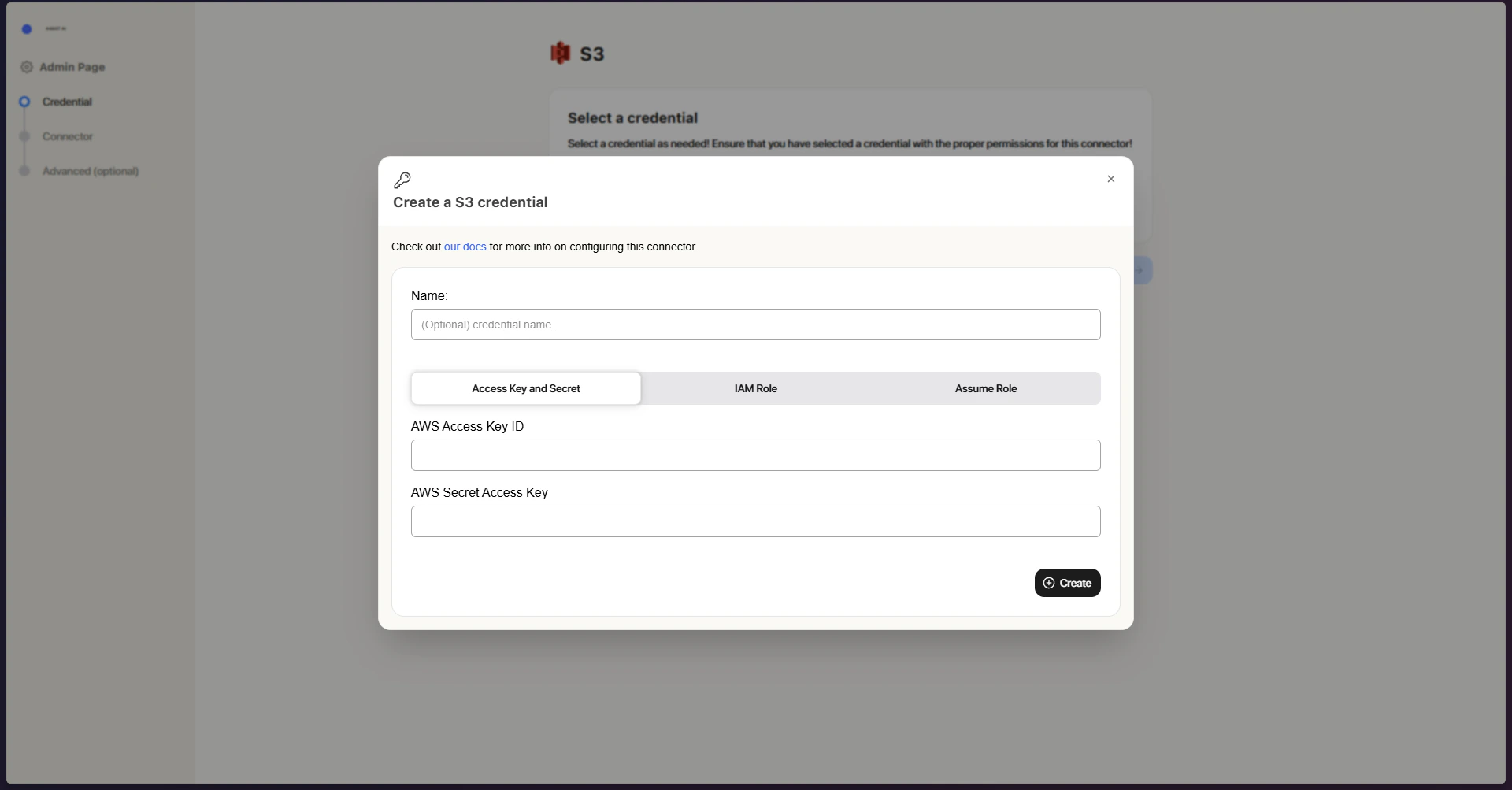
AWS Access Keys Authorization
- Open AWS Console Sign in to your AWS Management Console.
- Open IAM Head to the IAM (Identity and Access Management) dashboard.
- Create a user
In the left-hand sidebar, select “Users” and then click “Create user”.
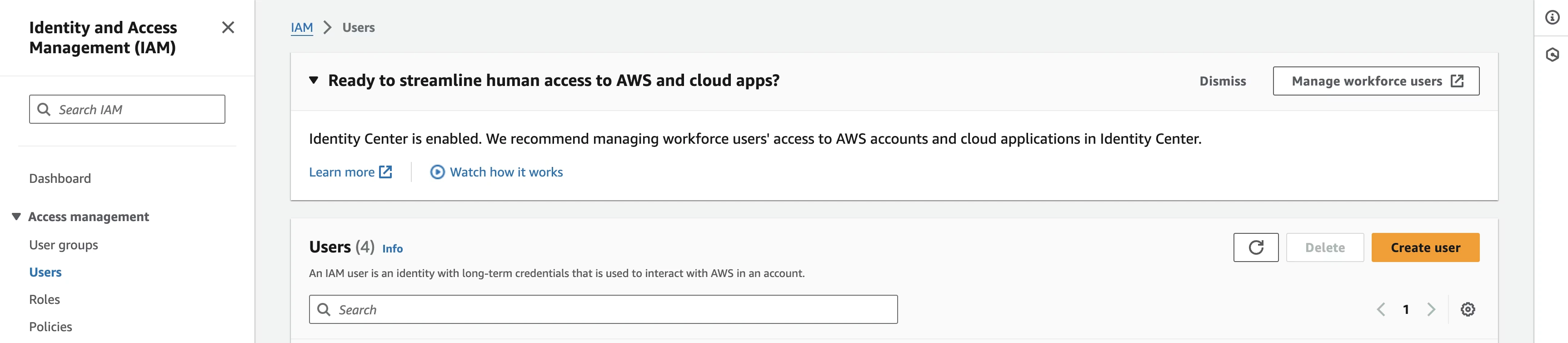
- Set user details Assign a name to the new user (e.g., “ASSISTAIS3Connector”) and click “Next”.
- Attach a policy Select “Attach policies directly”, then search for “AmazonS3ReadOnlyAccess” or a policy with comparable permissions. Choose the policy and click “Next”.
- Finalize the user Add any relevant tags if needed, then click “Create user”.
- Generate an access key
On the users page, click the newly created user. Under the summary section, select “
Create access key” and pick “Third-party service” as the intended use case. Acknowledge the disclaimer and move forward. - Save your keys
Optionally add a description tag, then click “
Create access key”. Make sure to copy both theAccess Key IDandSecret Access Keyright away, as the secret will not be retrievable later.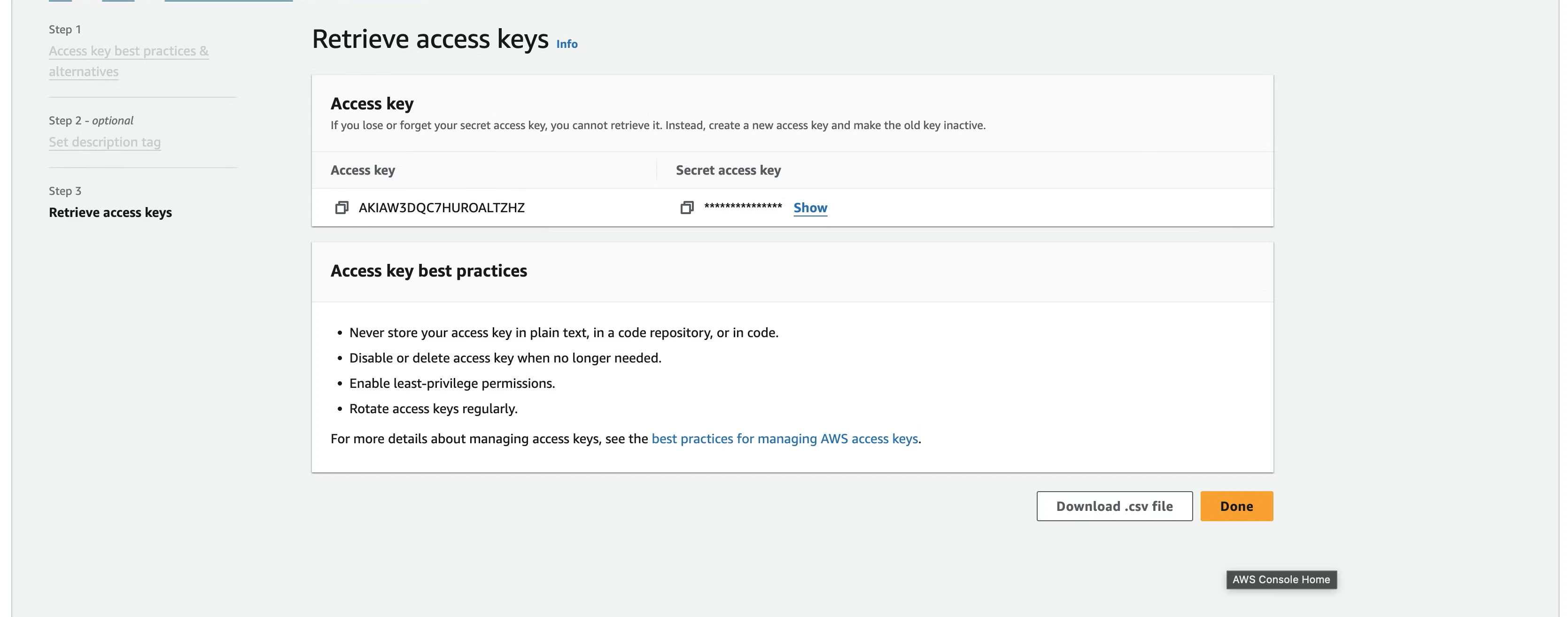
Credential Entry in ASSIST AI
When setting up the S3 connector in ASSIST AI, enter your credentials as follows:- AWS Access Key ID: Paste the Access Key ID copied from AWS
- AWS Secret Access Key: Paste the Secret Access Key copied from AWS