
Authorization
- Create a Google Cloud Project Visit https://console.cloud.google.com/projectcreate and set up a new project.
- Enable Gmail API and Admin SDK
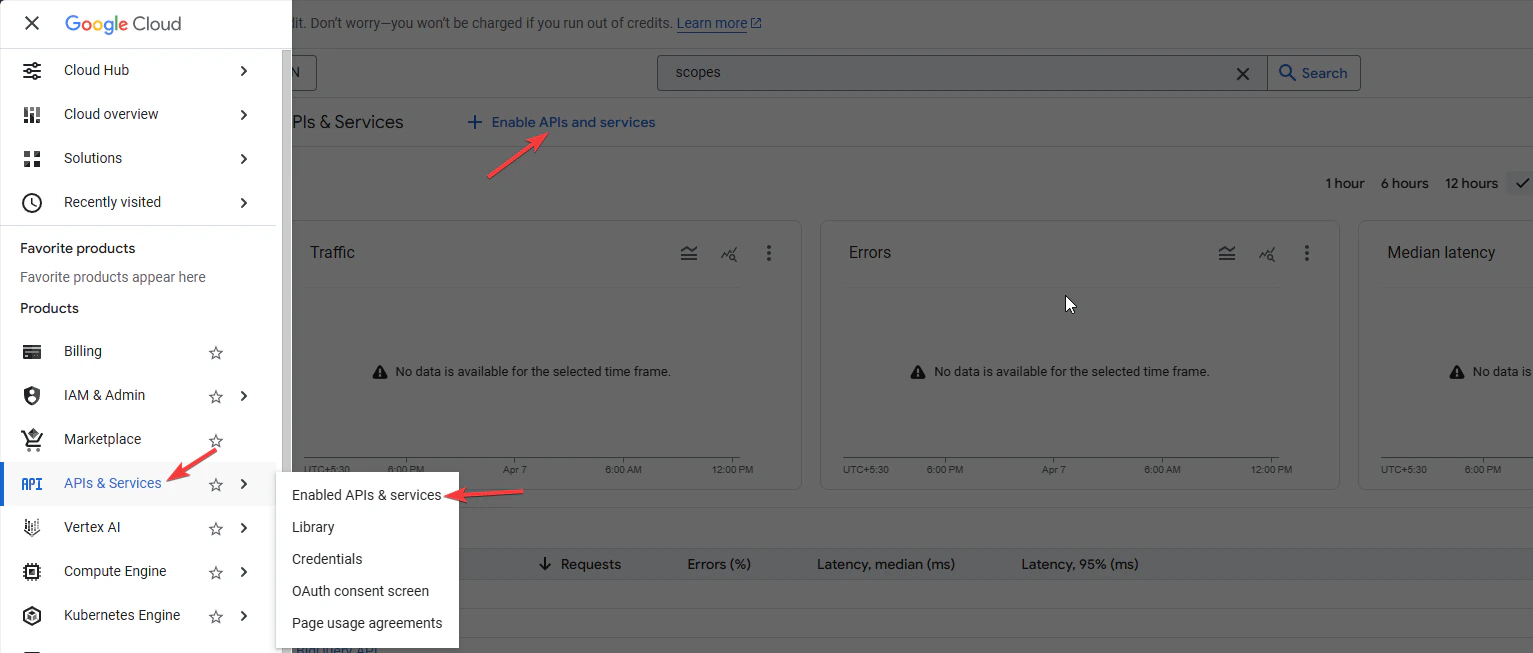
- On the left panel, open APIs & services
- Go to Enabled APIs and services
- On the top click +ENABLE APIS AND SERVICES
- Search for Gmail API and click ENABLE
- Alternatively visit this link, select your project and enable the Gmail API
- Also enable Admin SDK API (search and enable)
- Create a Service Account
- Navigate to the Service Account management page in Google Cloud.
- Click
Create Service Account.Fill in the details in Step 1 — Steps 2 and 3 can be skipped. - Once created, go to the Keys section, click Add Key, and download the key file. You’ll need to upload this to ASSIST AI later.
- Note for Google Organizations created after April 2024:
- To give the service account the proper permissions you will have to navigate to this link
- Then select
Manage, selectOverride parent's policyand then selectNot enforcedunderRules. - Finally, select
SET POLICY
- Grant Domain-Wide Delegation This step gives the Service Account read-only access to Gmail.
- Copy the
Unique IDof the Service Account - Go to the Domain-wide Delegation page in the Google Admin Console.
- Click
Add new, fill in the client ID with theUnique IDof the Service account - Copy this comma separated list of scopes and paste it into field
OAuth scopes:https://www.googleapis.com/auth/gmail.readonly,https://www.googleapis.com/auth/admin.directory.group.readonly,https://www.googleapis.com/auth/admin.directory.user.readonly
- Copy the