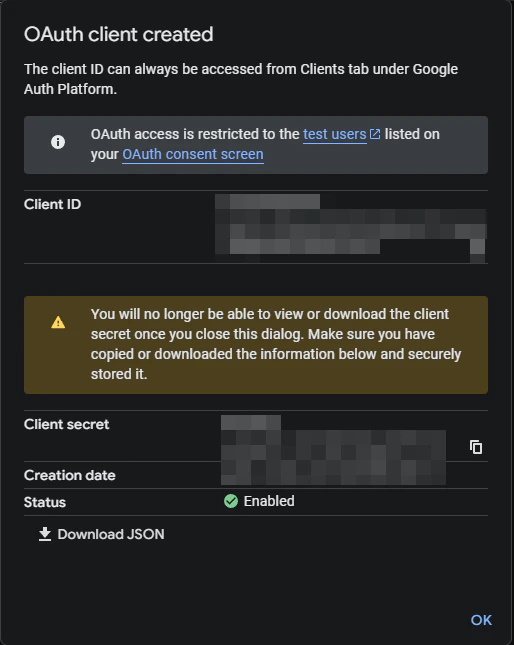
Authorization
- Create a Google Cloud Project Visit https://console.cloud.google.com/projectcreate and create a new project.
-
Enable Gmail API
- On the left panel, open APIs & services
- Go to Enabled APIs and services
- On the top click +ENABLE APIS AND SERVICES
- Search for Gmail API and click ENABLE
- Alternatively visit this link, select your project and enable the Gmail API
-
Configure the OAuth Consent Screen Under APIs & Services, open the OAuth consent screen tab. If you don’t have a Google Organization, select
Externalas the User Type. Name the app Assist AI (or any name you prefer). Provide the required support emails — you can use your own orinfo@tryassist.in. Click Save and Continue. -
Configure Scopes Add the
.../auth/gmail.readonlyscope for the Gmail API. To enable permission syncing for this connector:
- Enable the Admin SDK API (visit this link: https://console.cloud.google.com/flows/enableapi?apiid=admin.googleapis.com) and enable it for your project.
- Add the scope
.../auth/admins.directory.user.readonlyforAdmin SDK API. - Add the scope
.../auth/admins.directory.group.readonlyforAdmin SDK API. - The account performing the OAuth flow must have an Admin role in the Google Workspace that has access to the “Groups > Read” privilege. This can be set in the Google Admin Console under Account > Admin roles.
- Add Test Users Add at least one test user email (only if you don’t have a Google Organization) only these accounts will be permitted to run the OAuth flow and index emails. Click Save and Continue, review your settings, then return to the dashboard.
-
Create OAuth Credentials
- Go to the Credentials tab and select + Create Credentials → OAuth Client ID.
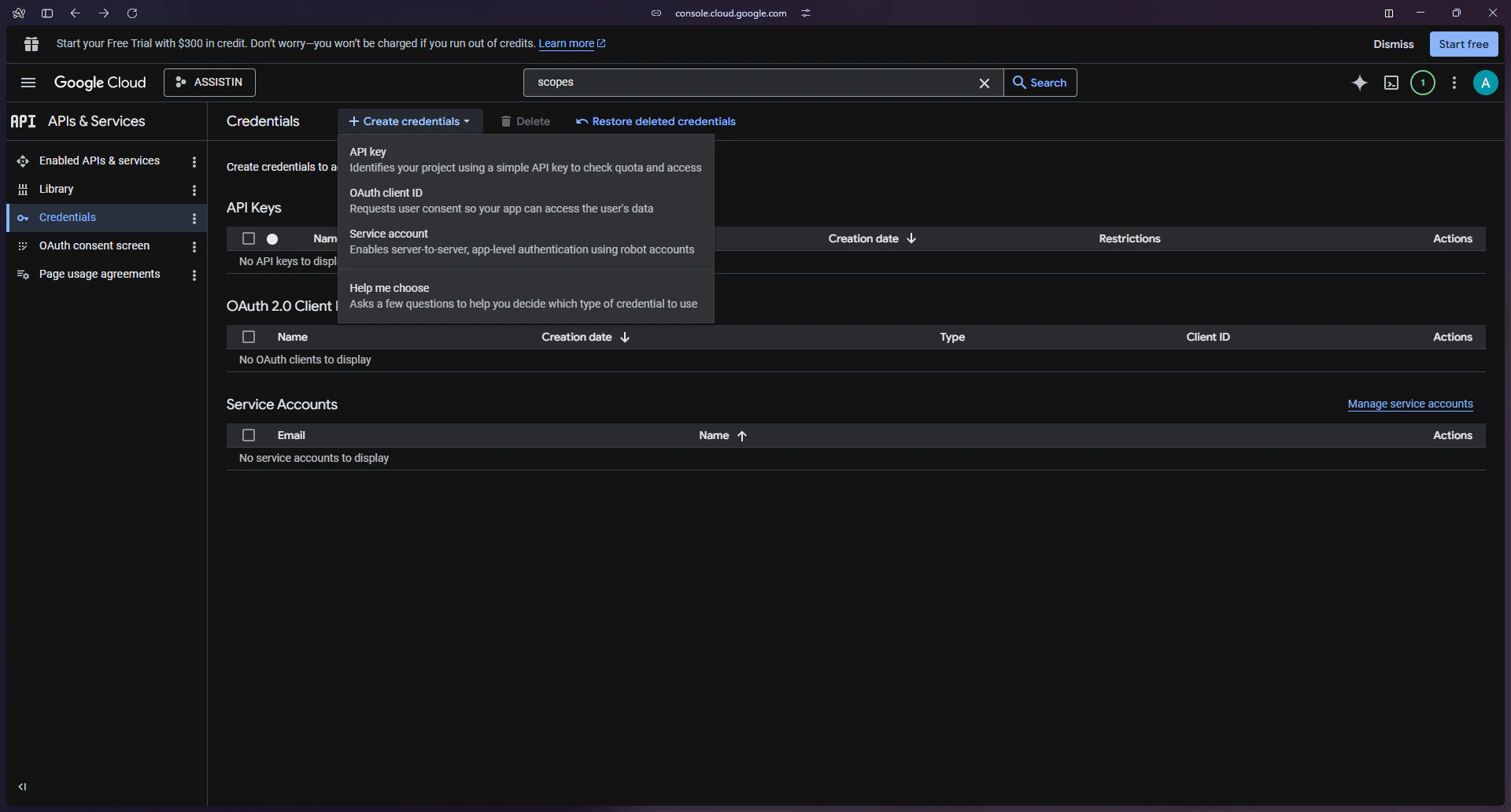
- Choose Web Application and give it a name like
AssistAIConnector. Then configure the following: - Authorized JavaScript Origins:
https://cloud.tryassist(Assist AI Cloud)- Authorized Redirect URIs:
https://cloud.tryassist.in/admin/connectors/gmail/auth/callback(Assist AI Cloud)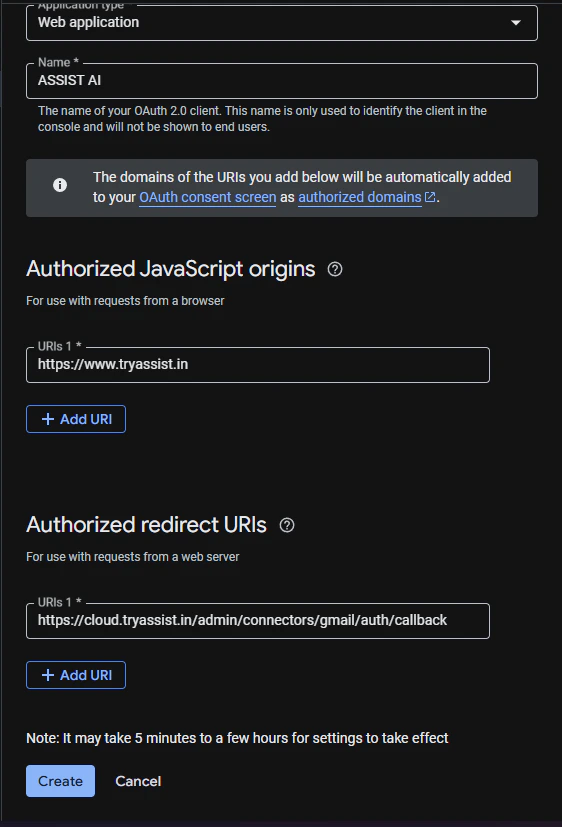
- Go to the Credentials tab and select + Create Credentials → OAuth Client ID.