> ## Documentation Index
> Fetch the complete documentation index at: https://docs.tryassist.in/llms.txt
> Use this file to discover all available pages before exploring further.
# S3 Assume Role
This method leverages the IAM role already attached to your EC2 instance to access S3 buckets - no manual credential input is needed.
### Prerequisites
* Confirm that your EC2 instance has an IAM role assigned to it.
* Make sure the instance profile is correctly set up through the AWS Console under EC2 › Instance Settings › Attach/Replace IAM Role.
## Updating the Existing IAM Role
Since your EC2 instance already has an IAM role in place, you'll need to update it with the appropriate S3 permissions:
1. **Open the role in IAM** In the AWS Console, navigate to IAM › Roles and locate the role attached to your EC2 instance.
2. **Attach the S3 policy** Click on the role and go to the `Permissions `tab. Select` Add permissions › Attach policies`, search for and choose the `AmazonS3ReadOnlyAccess `policy, then click `Attach policies.`
For more precise access control, you can alternatively set up a custom inline policy:
1. **Create an inline policy** Within the same role's Permissions tab, click Add permissions › Create inline policy. Switch to the JSON editor and enter the policy below (replacing `your-source-bucket-name` with your actual bucket name):
```text theme={null}
{
"Version": "2012-10-17",
"Statement": [
{
"Effect": "Allow",
"Action": [
"s3:GetObject",
"s3:ListBucket"
],
"Resource": [
"arn:aws:s3:::your-source-bucket-name",
"arn:aws:s3:::your-source-bucket-name/*"
]
}
]
}
```
Give the policy a name (e.g., `ASSISTAIS3Access`) and click **Create policy**. Once configured, the connector will automatically detect and utilize the EC2 instance's IAM role to access your S3 buckets.
## Credential Entry in ASSIST AI
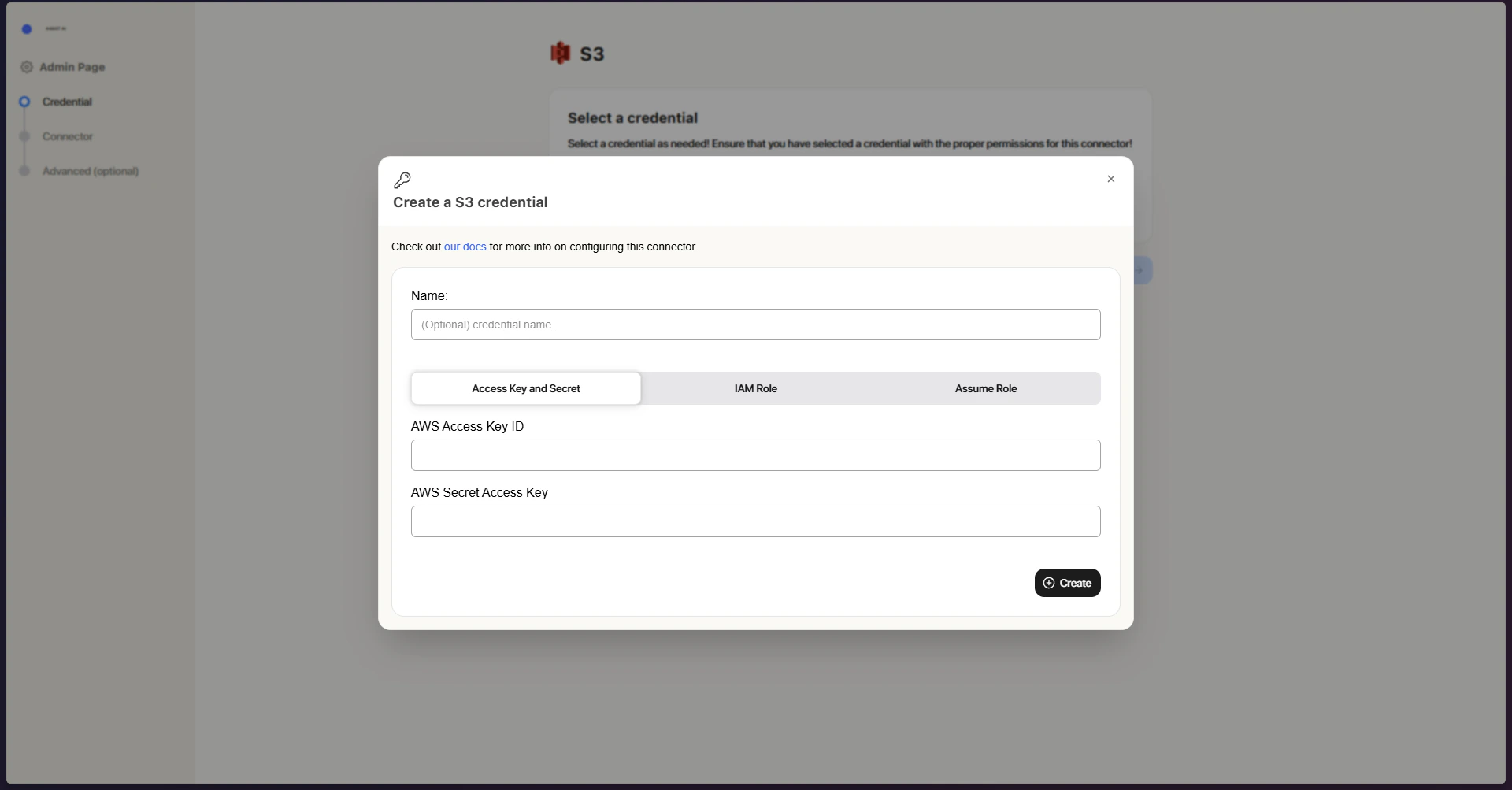
1. **Open the Assume Role tab** Click on the Assume Role tab within the connector configuration.
2. **No credentials required** There is nothing to enter here; the connector will automatically pick up and use the IAM role attached to your EC2 instance.
 Once your EC2 instance's role has been updated with the necessary S3 permissions, head back to the indexing steps in the overview to finish configuring your S3 connector.