> ## Documentation Index
> Fetch the complete documentation index at: https://docs.tryassist.in/llms.txt
> Use this file to discover all available pages before exploring further.
# S3 Access Keys
## AWS Access Keys Authorization
1. **Open AWS Console**
Sign in to your AWS Management Console.
2. **Open IAM**
Head to the IAM (Identity and Access Management) dashboard.
3. **Create a user**
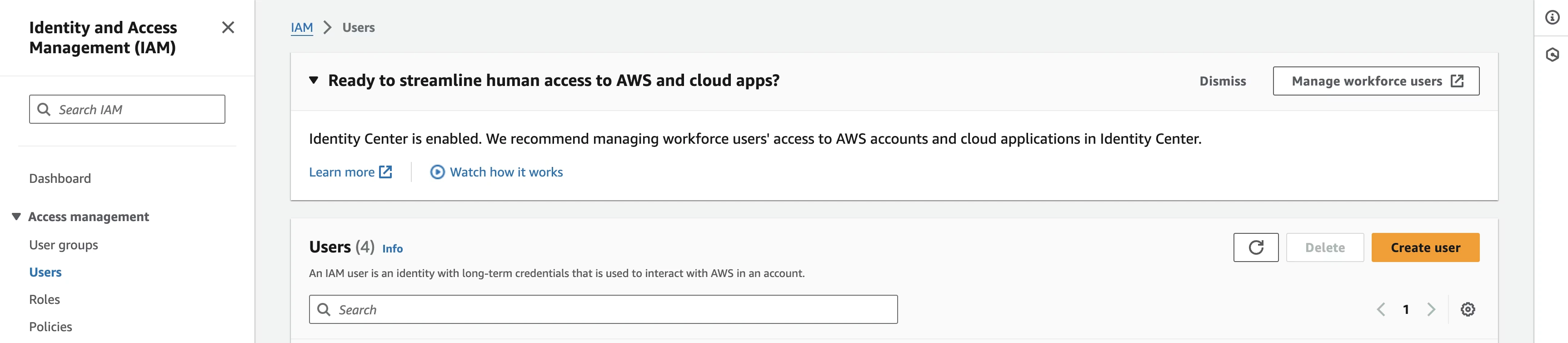
In the left-hand sidebar, select "Users" and then click "Create user".
 4. **Set user details**
Assign a name to the new user (e.g., "ASSISTAIS3Connector") and click "Next".
5. **Attach a policy**
Select "Attach policies directly", then search for "AmazonS3ReadOnlyAccess" or a policy with comparable permissions. Choose the policy and click "Next".
6. **Finalize the user**
Add any relevant tags if needed, then click "Create user".
7. **Generate an access key**
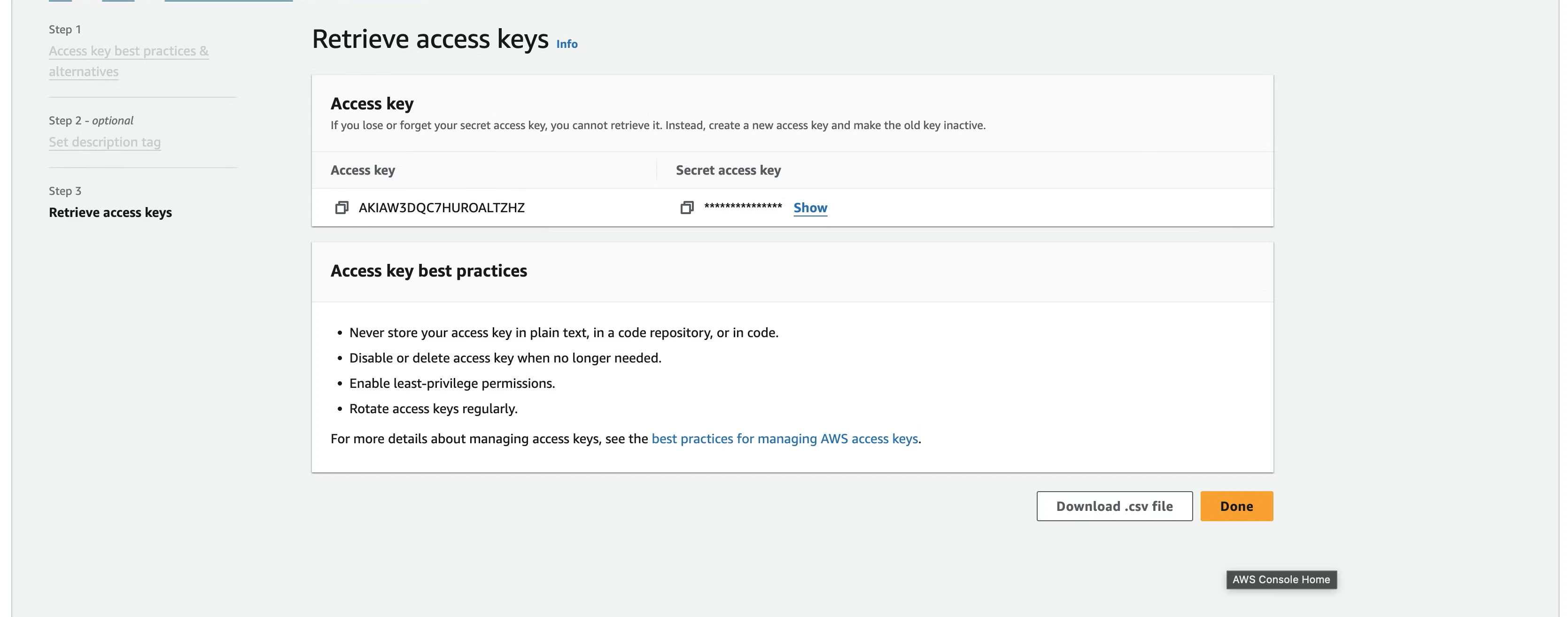
On the users page, click the newly created user. Under the summary section, select "`Create access key`" and pick "`Third-party service`" as the intended use case. Acknowledge the disclaimer and move forward.
8. **Save your keys**
Optionally add a description tag, then click "`Create access key`". Make sure to copy both the `Access Key ID` and `Secret Access Key` right away, as the secret will not be retrievable later.
4. **Set user details**
Assign a name to the new user (e.g., "ASSISTAIS3Connector") and click "Next".
5. **Attach a policy**
Select "Attach policies directly", then search for "AmazonS3ReadOnlyAccess" or a policy with comparable permissions. Choose the policy and click "Next".
6. **Finalize the user**
Add any relevant tags if needed, then click "Create user".
7. **Generate an access key**
On the users page, click the newly created user. Under the summary section, select "`Create access key`" and pick "`Third-party service`" as the intended use case. Acknowledge the disclaimer and move forward.
8. **Save your keys**
Optionally add a description tag, then click "`Create access key`". Make sure to copy both the `Access Key ID` and `Secret Access Key` right away, as the secret will not be retrievable later.
 ## Credential Entry in ASSIST AI
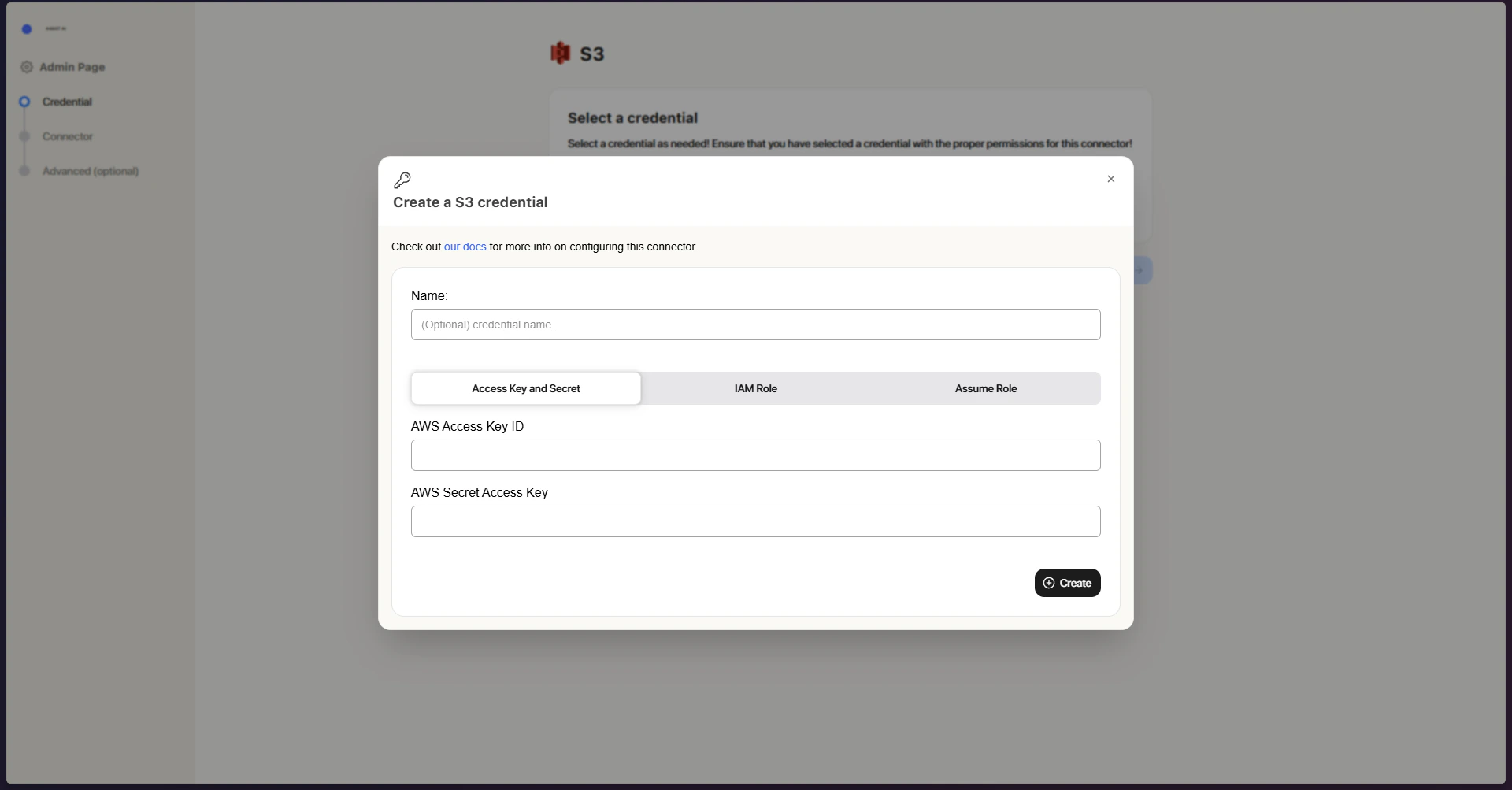
When setting up the S3 connector in ASSIST AI, enter your credentials as follows:
* **AWS Access Key ID:** Paste the Access Key ID copied from AWS
* **AWS Secret Access Key:** Paste the Secret Access Key copied from AWS
## Credential Entry in ASSIST AI
When setting up the S3 connector in ASSIST AI, enter your credentials as follows:
* **AWS Access Key ID:** Paste the Access Key ID copied from AWS
* **AWS Secret Access Key:** Paste the Secret Access Key copied from AWS
 Once your AWS Access Keys are ready, refer back to the indexing steps in the overview to complete your S3 connector setup.