> ## Documentation Index
> Fetch the complete documentation index at: https://docs.tryassist.in/llms.txt
> Use this file to discover all available pages before exploring further.
# Dropbox
## How it works
The Dropbox connector imports all documents from your Dropbox account into ASSIST AI.
It recursively retrieves all files starting from the root directory of your account - at this time, it is not possible to limit imports to specific folders only. The connector performs a single pull upon initialization.
To bring in additional documents later, you'll need to generate a new access token (see Step 4 below), enter it into the connector, and re-initialize it.
## Setting Up
### Authorization
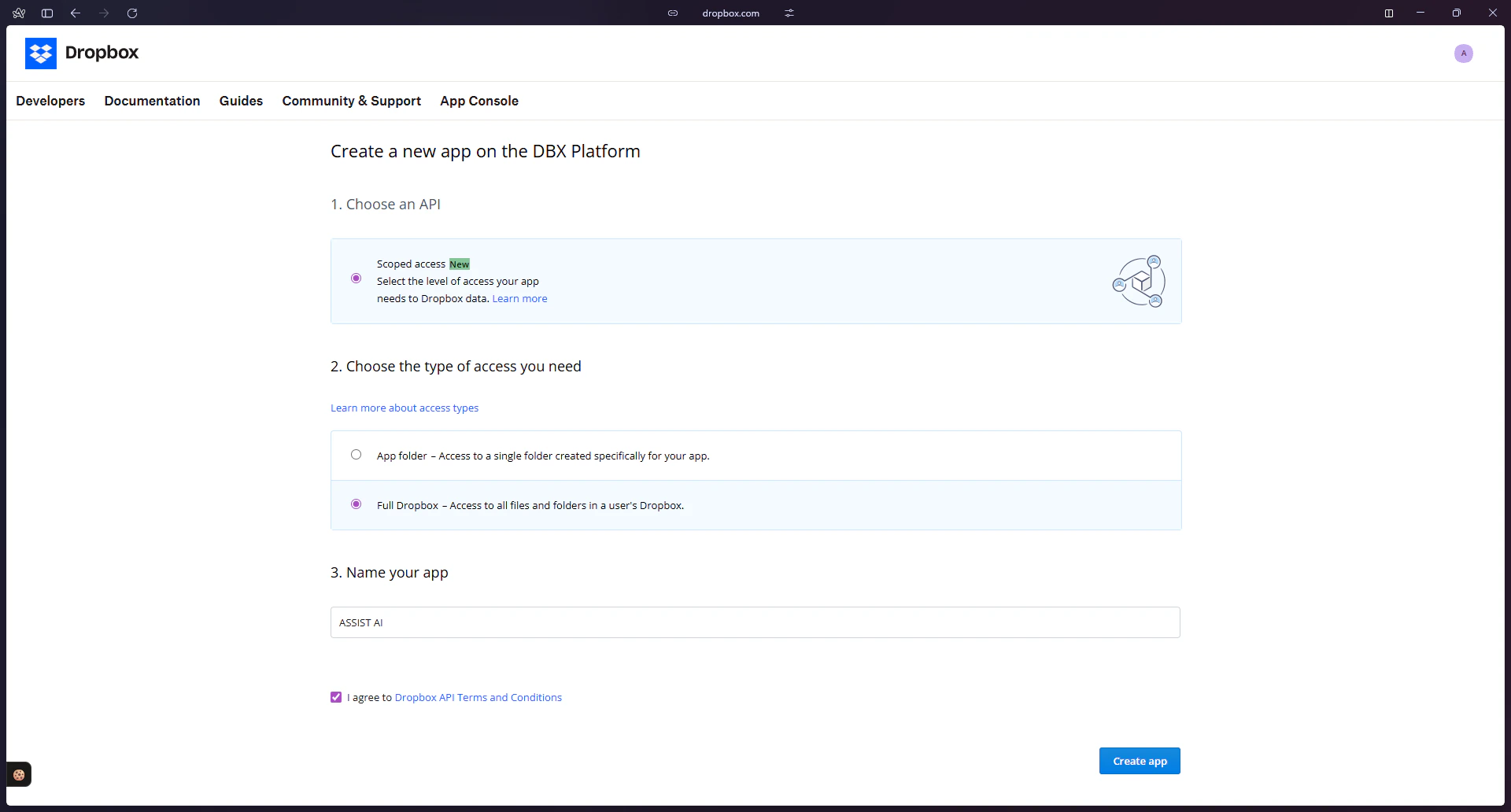
1. **Create a Dropbox App** — Go to [https://www.dropbox.com/developers/apps](https://www.dropbox.com/developers/apps) and click `Create app` in the top-right corner. Select `Scoped access` and `Full Dropbox` as the access type. Give your app a name such as "ASSIST AI Connector" and click `Create app`.
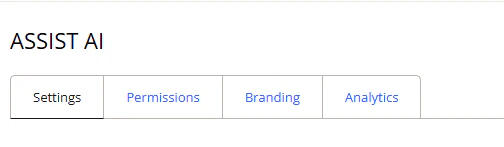
 2. **Open Permissions** Click on the `Permissions` tab.
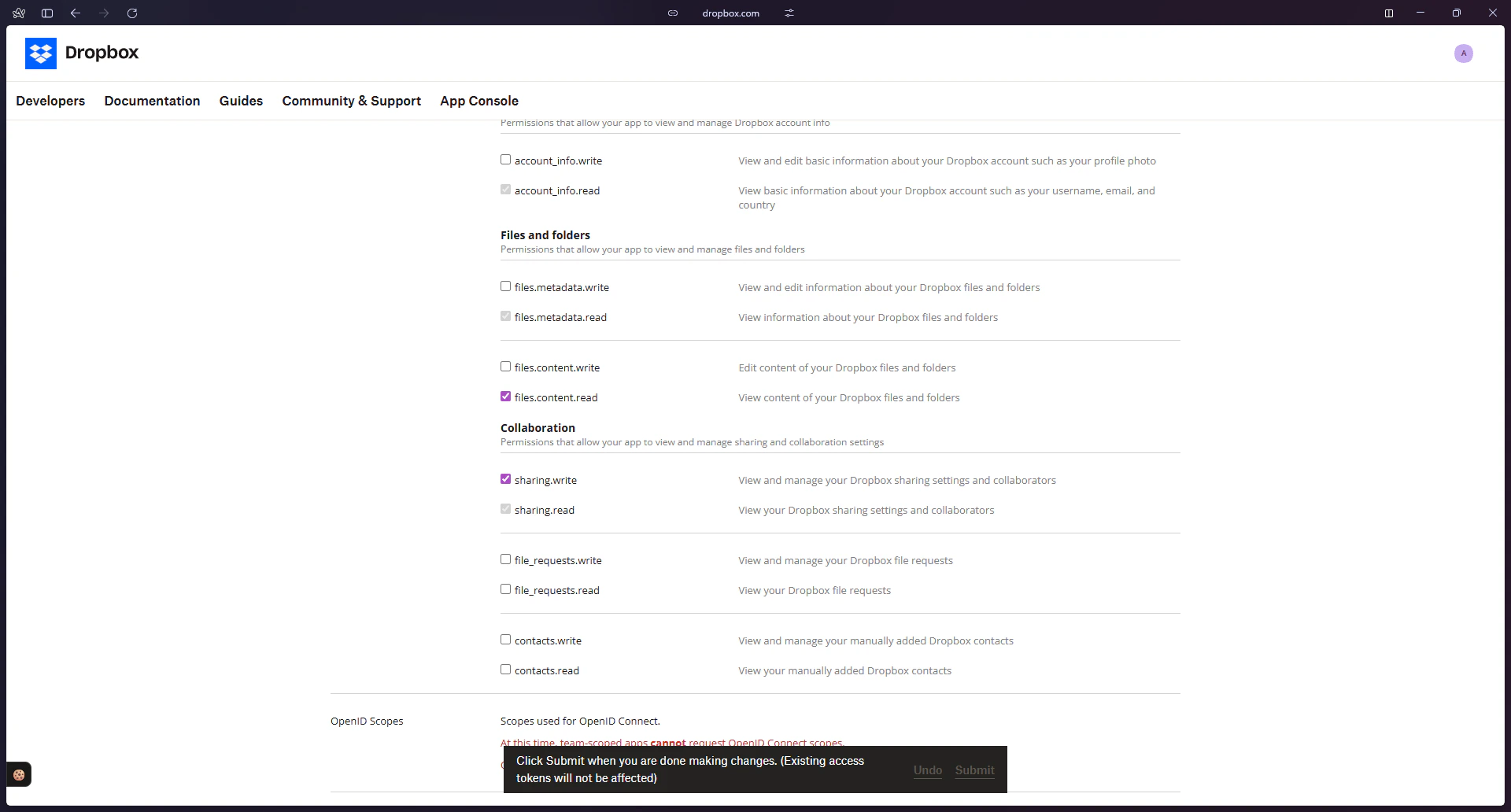
 3. **Grant Required Scopes** Enable the `files.content.read` and `sharing.write` permissions so that files can be read and document links can be generated. Click `Submit `to save your changes.
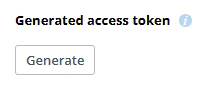
 4. **Generate an Access Token** Go to the `Settings `tab and scroll down to the `OAuth 2`section. Click `Generate` to create an access token.
Permissions must be granted before generating an access token. Updating permissions after the fact will not apply to existing tokens, and ASSIST AI will be unable to index your Dropbox content.
5. **Copy the Access Token** Copy the generated token and store it for the next step. Refresh the page if you need to regenerate the token.
4. **Generate an Access Token** Go to the `Settings `tab and scroll down to the `OAuth 2`section. Click `Generate` to create an access token.
Permissions must be granted before generating an access token. Updating permissions after the fact will not apply to existing tokens, and ASSIST AI will be unable to index your Dropbox content.
5. **Copy the Access Token** Copy the generated token and store it for the next step. Refresh the page if you need to regenerate the token.
 ## Indexing
1. **Open the Dropbox Connector** In the ASSIST AI interface, navigate to the Admin Panel and select the Dropbox Connector.
2. **Enter the Access Token** Paste the access token you copied in the previous step.
3. **Start Indexing** Click "Connect" to begin importing your Dropbox files into ASSIST AI.
## Indexing
1. **Open the Dropbox Connector** In the ASSIST AI interface, navigate to the Admin Panel and select the Dropbox Connector.
2. **Enter the Access Token** Paste the access token you copied in the previous step.
3. **Start Indexing** Click "Connect" to begin importing your Dropbox files into ASSIST AI.